
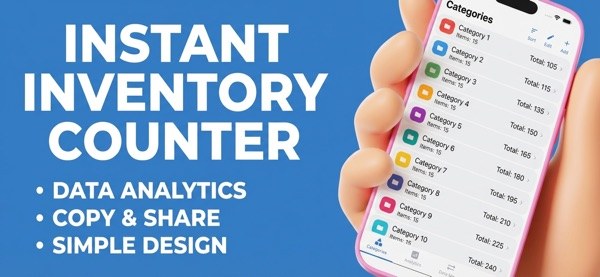
Inventory Management Counter

iPhone / iPad · iOS 15.0+

Count anything.Sort it by category.

Count stock, reps or habits with counters grouped into categories. See totals and other stats for each category, and export your data when you need it.

Download on the App StoreFree (with in-app purchases)

Scan with your iPhone

Inventory Management Counter

When it helps

What it does

  1. 01

    Organized by category

    Group related counters into categories, and sort them by name, item count, total and more.

  2. 02

    Settings for each counter

    Give each counter its own initial value, background color, maximum value and sound effect.

  3. 03

    Lock against slips

    Lock a counter and its value cannot be changed by accident.

  4. 04

    List or grid

    Check the details in list view, or lay counters out in a grid for quick counting.

  5. 05

    Category statistics

    See the total, average, median, minimum, maximum and more for each category.

  6. 06

    Export and import

    Export as JSON, CSV or TXT, and import from a JSON file or the clipboard.

In detail

01

Organize counters into categories

Group related counters into categories and sort them by custom order, name, item count or total value. You can also mark categories as favorites, and share or copy category information.

  • Create, edit, delete and reorder
  • Favorite categories
  • Share and copy category info
02

Fine-tune each counter

Every counter has its own initial value, background color, optional maximum value and sound effect. A lock option stops the count from being changed by accident.

  • Initial and maximum values
  • Custom background color
  • Lock function
  • Special sound at chosen values
03

Switch between list and grid view

List view shows detailed information and lets you edit. Grid view packs counters into a compact layout for quick counting. Switch using the bar at the bottom of the screen.

  • Adjust grid columns with a slider
  • "+" and "-" buttons, plus increment/decrement mode
04

See statistics for each category

For any category, view basic stats such as item count, minimum, maximum, total, average and median. You can copy the analysis or share it with other apps.

  • Lists of favorites and locked items
  • Created and updated dates
  • Change from the initial value
05

Export and import your data

Export everything, a single category or a single counter. Data you exported earlier can be imported back from a JSON file or from the clipboard.

  • Export as JSON, CSV or TXT
  • Choose which categories or counters to import

How it works

  1. 1

    Create a category

    Tap "Add" at the top right of the category screen to create a category. Use "Edit" and "Sort" to change its details or order.

  2. 2

    Add a counter

    Open a category and tap the "+" icon in the top bar to add a counter. In edit mode, set the initial value, background color, maximum value and more.

  3. 3

    Start counting

    Tap "+" to count up and "-" to count down. A button in the top bar switches between increment and decrement mode, and "Reset to initial value" returns the counter to where it started.

  4. 4

    Change the view or export

    Use the bar at the bottom to switch between list and grid view. The export icon in the toolbar outputs your data as JSON, CSV or TXT.

Screens

Categories listed with their totals

FAQ

Is the app free to use?

There is a free plan and a Premium plan. The free plan allows up to 5 categories; Premium removes that limit. Premium also lifts limits on adding counters, customizing colors and sounds, the lock function, copying and sharing analysis, and importing and exporting data.

Where is my counter data stored?

On your device, in a local database.

Can I turn off the sound and vibration?

Yes. Sound effects and vibration can each be switched on or off.

Can I use my data in other apps?

You can export it as JSON, CSV or TXT, then share it as a file or copy it to the clipboard.

Can I restore data I exported?

Yes. Import from a JSON file or from the clipboard, and choose which categories or counters to bring in.

Does it support dark mode?

Yes. Choose between following the system setting, light, or dark theme.

How do I avoid changing a count by accident?

Lock a counter to prevent its value from being changed. The lock function is part of the Premium plan.

Keep every count in one place.

Download on the App Store
Inventory Management CounterGet